
BlogGuides
Edit your website from Claude Code with the glokki MCP server
Connect Claude Code to your glokki workspace in two minutes, then let it create a page, fill it with your own blocks, check it and publish it — with you approving each step.
glokki team3 min read
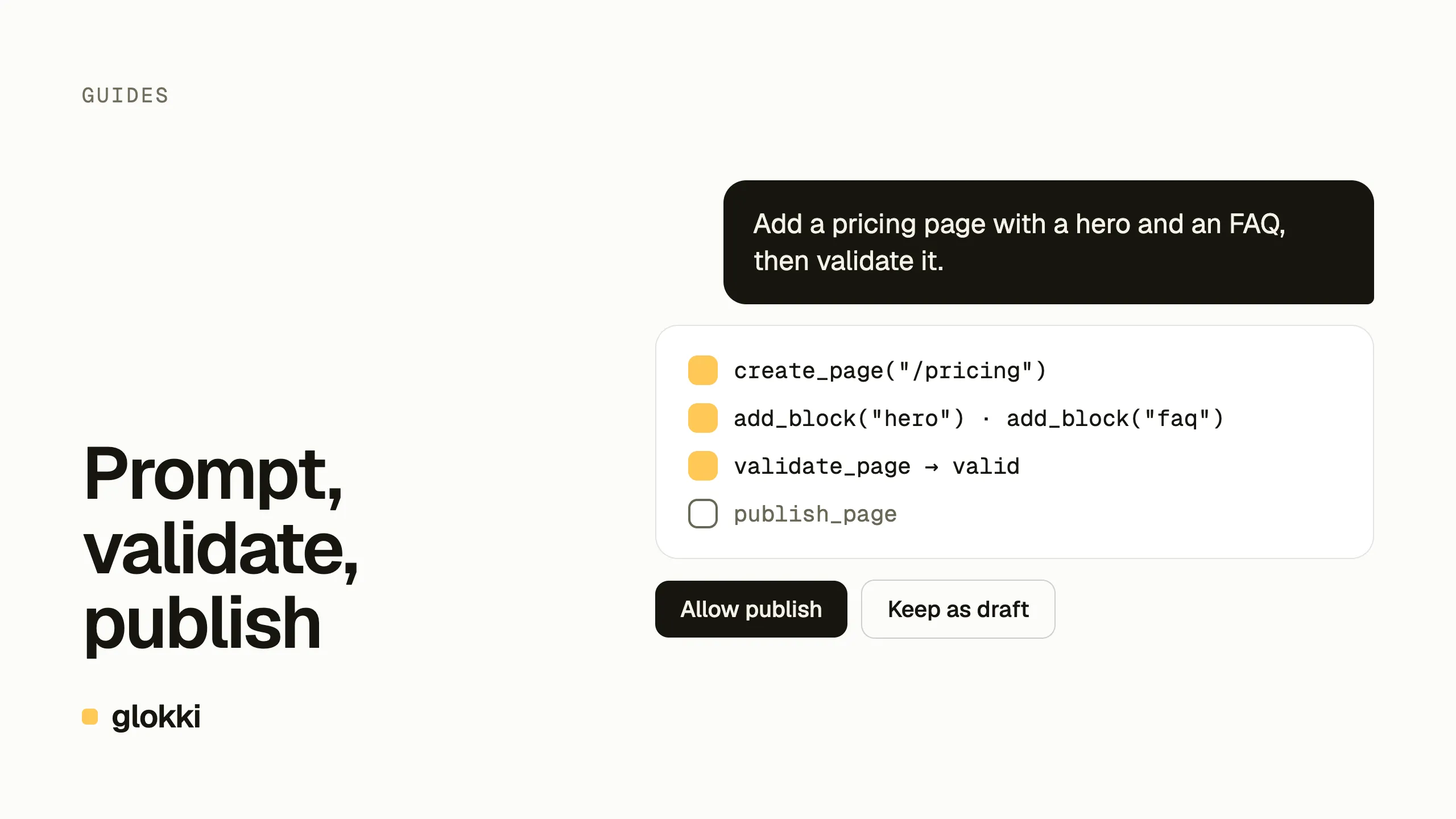
glokki ships with an MCP server. Any client that speaks the Model Context Protocol, such as Claude Code or Cursor, can use it to read and edit your site with the same blocks and permissions your editors have. This guide connects Claude Code and walks through one page, from empty to published.
What you need
- A glokki workspace with your site connected (the integration guide covers this).
- Your blocks deployed, and the visual editor opened once after that deploy. The MCP server works from a snapshot of your block registry that refreshes when the editor loads, so a block it has never seen doesn't exist for the agent yet.
- Claude Code installed.
1. Create an API key
In the dashboard, open Settings → API Keys and create a key. Pick only the scopes the agent needs:
| Scope | Lets the agent |
|---|---|
mcp:connect | connect at all (required) |
admin:pages:read | list and read pages, blocks, collections, layouts |
admin:pages:write | create pages, add and edit blocks, SEO, layouts |
admin:pages:publish | publish and unpublish |
Start without admin:pages:publish. The agent can then build drafts, and
publishing stays a button you press — you can add the scope later.
The key is shown once. Copy it.
2. Connect Claude Code
claude mcp add --transport http glokki https://app.glokki.com/api/mcp/mcp \
  --header "Authorization: Bearer ek_live_…"
Then, in Claude Code, run /mcp. It calls whoami and shows your
workspace. Check blockRegistry.schemaSyncedAt while you're there: if it is
older than your last deploy, open the visual editor once.
3. Ask for a page
Describe the page the way you'd brief a colleague:
Create a draft page at /pricing-faq using our existing blocks: a hero with the heading "Pricing questions", then an FAQ with these five questions, then the CTA band pointing at sign-up. Don't publish.
What the agent does with that, tool by tool:
list_block_typesandget_block_schema— to learn which blocks your site has and what fields each takes. It works with your blocks, not generic ones.create_page— a draft at/pricing-faq. It returns anupdatedAttoken.add_blockfor each section, passing the token from the previous call each time. The token is an optimistic lock: if someone edits the page in the dashboard meanwhile, the agent's next write is refused instead of overwriting their work.update_seo— title and description.validate_page— a dry run of the same checks publishing runs. Any problem comes back as a field path, so the agent can fix it.
Open the draft in the visual editor and look at it. Change a word by hand if you like — the agent's next edit will notice, because the token moved.
4. Publish
If the key has admin:pages:publish, say "publish it" and the agent calls
publish_page. Otherwise publish from the dashboard.
Editing what's already live
The same loop works on existing pages, and this is where an agent saves the
most time: changes that touch many places. On glokki.com we switched every
"Request access" button to self-serve sign-up — header, footer, hero,
segment cards, the CTA band and an FAQ answer — in one request. The agent
found them with get_page and get_layout, changed them with
update_block_props and set_layout_field, validated, and published.
Two behaviours worth knowing:
- Editing a published page makes it a draft. The live version stays up, but nothing changes for visitors until the page is published again.
- Lists are replaced, not merged. To change one FAQ answer, the agent reads the whole list, edits it, and sends it back.
What it can't do (yet)
- Open the visual editor to sync new blocks — a person has to.
- Set tags on collection entries, manage redirects, or add JSON-LD; those are done in the dashboard.
The full tool list, rate limits and error codes are in the MCP server guide.
Create a free account and connect your first agent.